A small business owner spent hours choosing the perfect photos for their new website — bright product shots, a friendly team photo, a clean logo. Everything looked polished and professional.
A few weeks later, they received two separate messages. One customer, who used a screen reader (special software that reads website content aloud for people with visual impairments), said the images on the site were being skipped entirely, as if they weren't even there. Another visitor, on a slow internet connection, mentioned that several images simply didn't load, leaving empty boxes with no idea what was supposed to be there.
The photos themselves were fine. Nothing was broken in the way the owner expected. The real gap was something invisible, sitting quietly behind every single image on the site.
Let's understand what it really means.
What Is Image Alt Text?
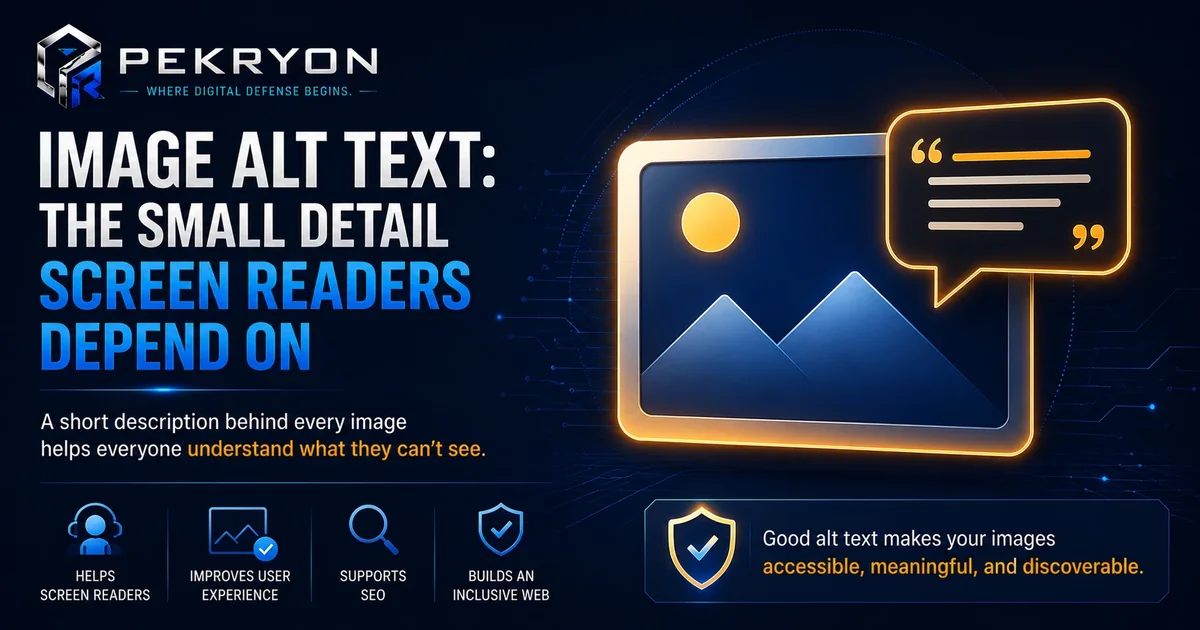
Image alt text (short for "alternative text") is a brief written description attached to an image in a website's code. It doesn't appear visibly on the page the way a caption does — it sits quietly behind the image, ready to be used whenever the image itself can't be seen or understood directly.
Think of it like a short description a helpful friend might whisper to someone who can't see a photo you're both looking at — "It's a golden retriever sitting on a green lawn." The friend doesn't need to see the actual pixels to understand what's there; the description does the job.
Alt text serves this purpose for screen readers reading it aloud, browsers when an image fails to load, and search engines that cannot "see" an image directly but can read its alt text.
Why Should You Care About This?
- Accessibility — without it, visually impaired visitors using screen readers get no information about your images at all, which can mean missing important product details or context.
- Broken or slow-loading images — if an image fails to load, alt text is the only thing shown in its place.
- Search engine understanding — search engines use alt text to understand what an image shows, which can help your images appear in relevant searches.
- Professional quality — missing alt text across a website is exactly the kind of small gap that accessibility and quality-checking tools flag.
Where Do You See This in Daily Life?
- Hovering over certain images and seeing a small tooltip describing them
- Seeing a small broken-image icon along with a short description when a photo fails to load
- Finding specific photos through an image search, based on descriptions that matched what you were looking for
- A screen reader pausing to describe an image aloud while reading through a page
How Does It Actually Work?
Alt text is added directly in a webpage's code, attached to each image using an attribute (a small piece of extra information) called alt. For example, an image might be written with alt="red bicycle parked outside a bakery".
Here's an important nuance beginners often miss: not every image needs the same kind of alt text, and some images need none at all.
- Meaningful images — product photos, informative graphics, or anything that adds real content to the page should have a clear, accurate description.
- Purely decorative images — small dividers, background patterns, or decorative flourishes that add no real information are often intentionally left with empty alt text, so screen readers can skip over them instead of reading out unnecessary descriptions.
Beginners often assume every image must be described in detail, or wrongly assume no image needs it at all. The accurate approach sits in between — describe what matters, and let purely decorative images stay quiet.
Common Examples
- An online store writes clear alt text for each product photo, like "blue ceramic mug with wooden handle," helping both screen reader users and search engines understand the product.
- A blog uses a decorative swirl image as a section divider and leaves its alt text empty on purpose, since it adds no real content.
- A recipe website forgets to add alt text to its step-by-step photos, leaving visually impaired visitors unable to follow the visual steps at all.
Benefits of Writing Good Alt Text
- Makes your website genuinely usable for visitors who rely on screen readers
- Keeps your website understandable even if images fail to load
- Helps search engines understand and potentially surface your images in relevant searches
- Reflects careful, thoughtful website building
Risks or Limitations to Understand
- Alt text alone does not make a website fully accessible — it's one important piece of a much larger accessibility picture
- Overly long, cluttered, or keyword-stuffed alt text can feel unnatural to screen reader users
- Leaving all alt text empty, including on meaningful images, removes real information rather than saving effort
- Alt text describes the image itself — it doesn't replace clear surrounding text or proper page structure
Common Mistakes Beginners Make
- Leaving alt text completely blank on meaningful, informative images
- Writing vague, unhelpful descriptions like "image1" or "photo" instead of something meaningful
- Assuming every single image, including purely decorative ones, must be described in detail
- Stuffing alt text with unrelated keywords purely for search engines, rather than describing the image accurately
Beginner Tips
- Describe what the image actually shows, briefly and clearly, as if explaining it to someone over the phone.
- Skip decorative-only images by leaving their alt text intentionally empty, rather than forcing a description.
- Avoid keyword stuffing — write for a real person first, and let accurate description naturally help search engines too.
- Check your existing images periodically, since new images added during updates are often forgotten.
- Keep descriptions concise — a short, clear sentence is usually better than a long, detailed paragraph.
Manual Check Guide: How to Check This Yourself
- Open any page of your website in a browser.
- Right-click on a specific image and choose "Inspect" (available in most modern browsers).
- A panel will open showing the image's code. Look for the word
alt=followed by quotation marks. - If there's a description inside the quotes, that's the current alt text for that image.
- If the quotes are empty (
alt=""), it may be intentional for a decorative image, or it may mean a meaningful image was accidentally left undescribed. - If you don't see
alt=at all, that image likely has no alt text set. - Repeat this for a few key images across your site, especially product photos or important graphics, to get a sense of how consistently alt text has been used.
This check takes just a few minutes and can be done on any website, including your own.
Frequently Asked Questions
1. What is image alt text? It's a short written description attached to an image in a website's code, used by screen readers, browsers, and search engines when the image itself can't be seen or loaded.
2. Does every image need alt text? No. Meaningful images should have clear descriptions, but purely decorative images can intentionally have empty alt text, since they add no real content.
3. What happens if I don't add alt text to my images? Screen readers will skip the image or read something unhelpful, visitors on slow connections won't know what a broken image was supposed to show, and search engines lose useful context about that image.
4. Can alt text improve my search engine rankings? It's not a major ranking factor by itself, but accurate alt text helps search engines understand your images better, which can support visibility in image and general search results.
5. Should I stuff alt text with keywords to help SEO? No. Alt text should describe the image naturally and accurately. Keyword stuffing can make it unhelpful for real users and is generally discouraged.
6. Is alt text the same as a visible image caption? No. A caption is visible text shown near an image, while alt text sits in the code and is used specifically when the image can't be seen directly.
7. How long should alt text be? Usually a short sentence or phrase is enough — just enough to clearly convey what the image shows, without becoming a long paragraph.
8. How can I check if my website's images already have alt text? You can right-click any image and select "Inspect" to view its code directly, or use a website scanning tool to check this along with other technical details.
Conclusion
The story of the missed screen reader descriptions and broken image boxes shows how something as small as a short line of hidden text can quietly affect real people using your website — accessibility, search visibility, and basic usability all depend a little on this one detail.
Fixing it is simple once you know it exists. A quick review of your website's images, paired with clear and honest descriptions, is often all it takes.
If you'd like to see how your own website is set up, you can run a quick, free check at pekryon.com and review this along with other technical details about your site.