Someone was casually browsing the internet, searching for a recipe, when they clicked a link and their screen suddenly turned bright red. A big warning appeared: "The site ahead contains malware" or "Deceptive site ahead."
They quickly closed the tab, a little shaken, and moved on with their day.
Weeks later, this same person was building their own small website for a side business. One morning, a friend messaged saying, "Hey, I tried opening your website, but my browser is warning me it's dangerous!"
They panicked. Nothing had changed on their end. No new content, no strange activity that they could see. So why was their own honest little website suddenly being treated like a threat?
The answer lies in a quiet, background system most people have seen in action but never really understood.
Let's understand what it really means.
What Is Google Safe Browsing?
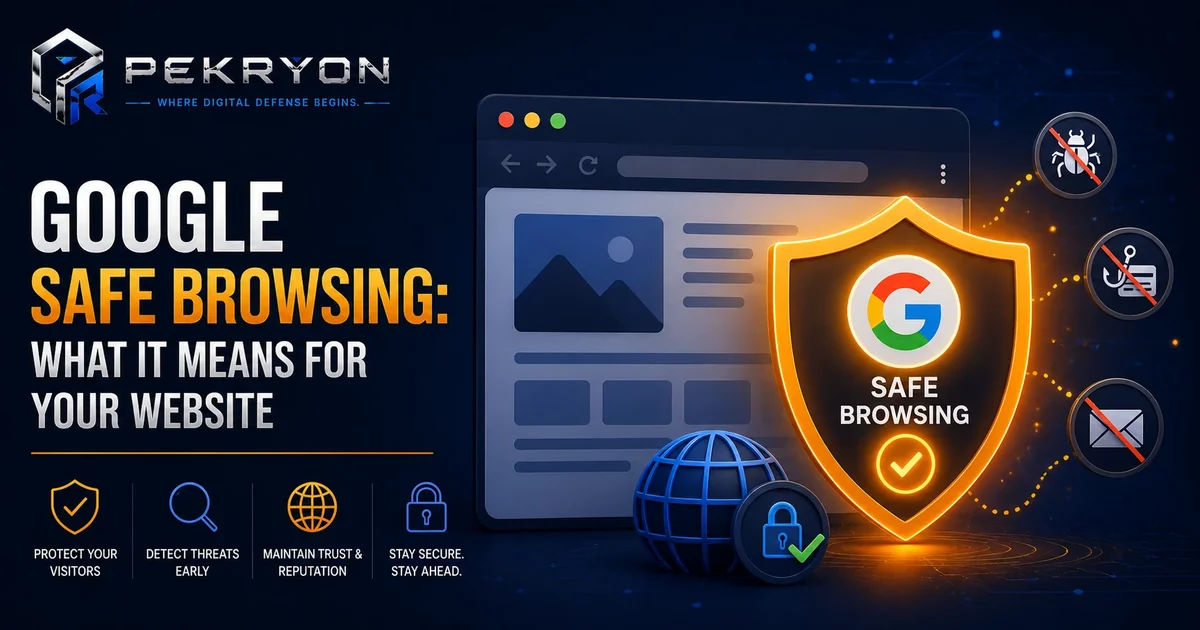
Google Safe Browsing is a system that constantly scans the internet, checking websites for signs of danger — like malware (harmful software that can damage a device or steal information), phishing (fake pages designed to trick people into giving up passwords or personal details), or other deceptive practices.
When Google's systems find a website behaving this way, that website's address gets added to a list. Browsers like Chrome, Firefox, and Safari (along with some antivirus tools) check this list before loading a page. If a match is found, they show that big warning screen instead of the actual website.
Think of it like a security guard checking a shared list of known troublemakers before letting anyone into a building. The guard isn't judging you personally — they're just following a list that gets updated constantly based on reported behaviour.
Importantly, this system isn't only used inside Google Chrome. Many other browsers and security tools use the same or similar Safe Browsing data, which is why a warning can appear even if someone isn't using Chrome at all.
Why Should You Care About This?
- As a visitor — it protects you from accidentally landing on harmful sites, especially when clicking unfamiliar links.
- As a website owner — if your site ever gets flagged, visitors are shown a scary warning screen instead of your content, which can seriously hurt trust and traffic, even if the issue wasn't your fault.
- For search visibility — flagged websites can also see changes in how search engines treat them, since safety signals matter for how confidently a site is displayed in results.
- For business reputation — a warning screen appearing on your own website, even briefly, can feel embarrassing and confusing if you don't know why it happened.
Where Do You See This in Daily Life?
- A red or orange full-screen warning appearing before a website loads
- A search result showing a small "This site may harm your computer" note underneath a link
- A downloaded file being blocked with a warning about it being unsafe
- A friend messaging you that your own website "looks dangerous" in their browser
You can even check any website's current status yourself using Google's own public Transparency Report tool, which shows whether a specific site is currently flagged.
How Does It Actually Work?
Google's systems continuously scan billions of web pages, looking for patterns associated with malware distribution, phishing attempts, or deceptive behaviour like fake download buttons or misleading pop-ups.
If a website is flagged, that specific address (or sometimes the whole domain) gets added to the Safe Browsing list. Browsers regularly check this list and block access with a warning page whenever a match is found.
Here's an important nuance beginners often miss: being flagged doesn't always mean the website owner did something wrong deliberately. Very often, an honest website gets hacked, and attackers quietly plant malicious code or fake pages without the owner noticing. In these cases, Safe Browsing flags the compromised website, even though the business behind it is completely genuine. This is different from cases where a website is deliberately built to deceive people — the warning looks the same to visitors, but the underlying cause can be very different.
Common Examples
- A small online store gets hacked, and attackers secretly add a hidden page designed to steal customer card details. Google flags the site, and visitors see a warning, even though the store owner had no idea it happened.
- A blog's outdated software has a security weakness that gets exploited to spread malware to visitors. The blog gets flagged until the issue is found and fixed.
- A completely fake website, deliberately built to trick people into entering banking details, gets flagged and blocked — this is the system working exactly as intended.
Benefits of Understanding Google Safe Browsing
- You browse more confidently, knowing there's a system working quietly to protect you
- As a website owner, you understand that a warning doesn't automatically mean you're a bad actor
- You know to take a flag seriously and act quickly, rather than panicking or ignoring it
- You can explain the situation clearly to customers or visitors if it ever happens to your own site
Risks or Limitations to Understand
- Getting flagged can happen quickly, but getting removed from the list (called requesting a "review") takes time, usually from a few hours to a few days after the issue is fixed
- A warning can scare away visitors and hurt trust, even after the underlying problem is resolved
- This system mainly catches malware, phishing, and deceptive behaviour — it doesn't check everything about a website's overall quality or security
- Being flagged once, if not properly fixed, can lead to repeated flags later if the same vulnerability is exploited again
Common Mistakes Beginners Make
- Assuming a warning means their website was intentionally doing something wrong
- Ignoring the warning or hoping it disappears on its own without addressing the actual cause
- Not checking their website regularly, so they only find out about a flag from a worried visitor or customer
- Fixing surface-level symptoms without properly cleaning the actual malicious code or vulnerability, leading to repeated flags
Beginner Tips
- Don't panic if you see a warning on your own website — it usually means something needs fixing, not that you did anything wrong on purpose.
- Investigate quickly if you're ever notified of a flag, since visitors are being blocked the entire time it stays unresolved.
- Keep your website software updated, since outdated systems are one of the most common ways hackers gain access in the first place.
- Check your website's safety status periodically, rather than waiting for a customer to tell you something looks wrong.
- Request a review promptly once you've fixed the underlying issue, so the warning can be lifted as soon as possible.
Manual Check Guide: How to Check This Yourself
- Open your browser and search for "Google Transparency Report Safe Browsing" (a free, official public tool from Google).
- On the tool's page, find the site status checker section.
- Type in your website's domain name (for example, yourbusiness.com) and press enter or click the check button.
- Review the result — it will show whether Google currently considers the site dangerous, and give a general summary of any recent findings.
- If the result shows no current issues, your site is not currently flagged by Google Safe Browsing.
- If it does show a flag, note the details given, since this information helps when investigating the cause and requesting a review after fixing it.
This check takes less than a minute and can be repeated regularly as a simple safety habit.
If Left Unaddressed: The Risk in Plain Terms
If a website is compromised and starts being used to host malware or phishing pages, the consequences tend to build up the longer it goes unnoticed. Visitors may continue being exposed to harmful content during that time, the site's reputation with browsers and search engines can worsen the longer the flag remains active, and the process of fully restoring trust afterward often takes longer the more extensive the compromise becomes.
This is a general explanation of why leaving a flagged or compromised website unaddressed can make the situation worse over time — not a technical description of how any specific compromise is carried out. It's meant to help website owners understand why acting quickly matters, not to describe any actionable technique.
Frequently Asked Questions
1. What is Google Safe Browsing? It's a system that scans websites for malware, phishing, and deceptive behaviour, and warns browsers so they can block or caution visitors before those sites load.
2. Does this only affect Google Chrome? No. Many other browsers and security tools use the same or similar Safe Browsing data, so warnings can appear even outside Chrome.
3. Does a warning always mean the website owner did something wrong deliberately? No. Often, a genuine website gets hacked, and attackers add harmful content without the owner's knowledge. The warning looks the same either way, but the cause can be very different.
4. How do I know if my own website has been flagged? You can check a specific website's status through Google's public Transparency Report tool, browser security settings, or a broader website scanner that includes safety checks like this.
5. How long does it take to get removed from the list after fixing the issue? It varies, but it's typically a few hours to a few days after requesting a review, once the harmful content or vulnerability has been properly resolved.
6. Can a completely honest website get flagged by mistake? It's rare, but hacking is the most common honest reason a genuine website gets flagged — not intentional wrongdoing by the owner.
7. Does fixing the visible problem guarantee the warning goes away immediately? Not immediately. You usually need to fix the actual cause and then request a review, after which the warning is removed once verified.
8. Is Google Safe Browsing the only safety check my website should worry about? No. It's an important one, but website safety also depends on other factors like blacklist status, outdated software, and general security practices.
Conclusion
The confusion and worry that comes with seeing a warning screen — whether as a visitor or as a website owner — usually comes down to one thing: not knowing how Google Safe Browsing actually works.
Now that you understand it, a warning doesn't have to feel alarming or embarrassing. It's simply a signal that something needs attention, and knowing this puts you in a much stronger position to respond calmly and quickly.
If you'd like to check where your own website currently stands, you can run a quick, free check at pekryon.com and review this kind of safety signal for yourself.